Telephone network in Connecter

An ordinary call.
Understand each other.Whatever language you speak.

Call a hotel, shop, company or friend on an ordinary number — and speak your own language. Connecter translates your speech for them and their replies for you.

Two-way translation between 20 languages. The other person receives an ordinary phone call and does not need to install Connecter. Useful when travelling and for everyday conversations with people who speak another language.

A woman calling from Connecter while a hotel receptionist answers an ordinary phone
You speak English.
They hear their own language.
They reply in their language.
You hear English.
A two-way conversation

Everyone speaks their own language. Choose one-way or two-way translation.

Audio under your control

Listen to translation alone or with the original speech. Set a comfortable volume.

Important details stay in history

Conversation text and translations are saved, keeping addresses, arrangements and instructions close at hand.

Your real phone number

How to register
a real phone number

Buying a phone number has never been as simple as with Connecter. The automated process helps you choose a country, check the requirements and submit an application quickly.

Fig. 1Open Phone. On the Connecter home page, tap the phone button.
Fig. 2Open your number list. At the top of Phone, tap the current phone number field. If no number is connected yet, the field is empty.
Fig. 3Start ordering a number. On the page that opens, tap Order New Number.
Fig. 4Choose a country. In Get Phone Number, open the country menu and select where you want to buy a number.
Fig. 5Choose a number type. After selecting a country, available types appear at the top: toll-free, national, local or mobile. Availability depends on the country.
Fig. 6Read the requirements. Each number type lists the information and documents required. Check the conditions for your chosen option and prepare the documents.
Fig. 7Ask the intelligent assistant. Tap the i button at the bottom centre of the page. The assistant briefly explains in your language who is eligible for the selected number type and which documents are needed.
Fig. 8Complete the application. Tap the button at the bottom right, choose an individual or company, enter the required details and attach documents. Then tap Submit for Review.

Application submitted — keep an eye on your Connecter chat. Review normally takes two to four days. A chat message will confirm approval, refusal or a request for additional documents.

Preparing and submitting an application takes around 15 minutes if your documents are ready. You can connect unlimited phone numbers in different countries, subject to each country's requirements.

How to use translation during a call

Choose the languages, make a call and enable the translation mode you need. Screenshots follow the conversation from dialling to the saved discussion. Call details and outgoing number selection appear at the end.
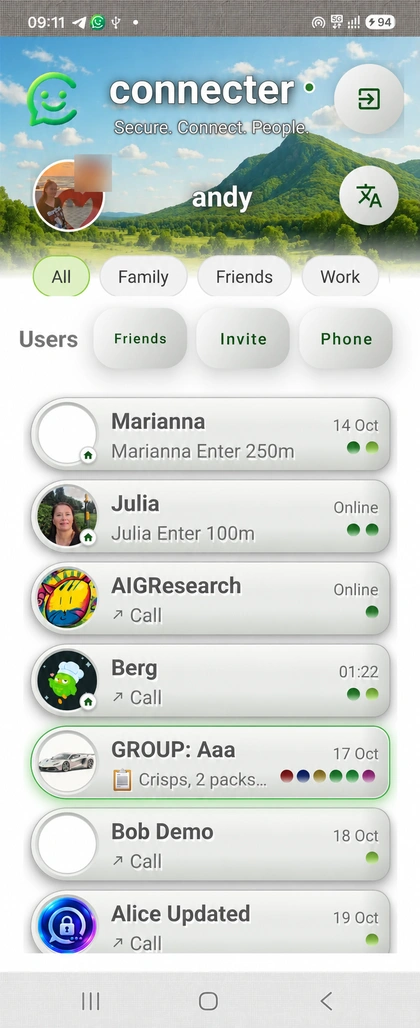
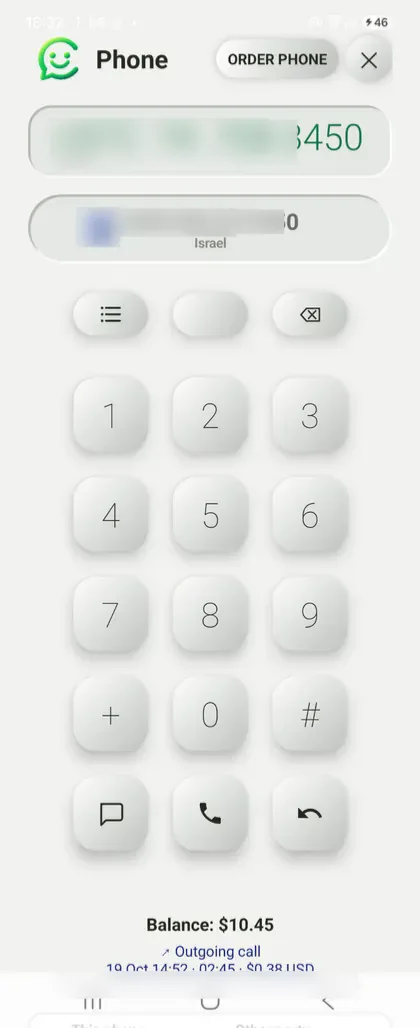
Fig. 1. Open telephone calls
Fig. 1Open telephone calls. On the Connecter home screen, tap Phone. This opens calls to ordinary telephone numbers, where you can choose languages and enable conversation translation.
Fig. 2. Open the dialler
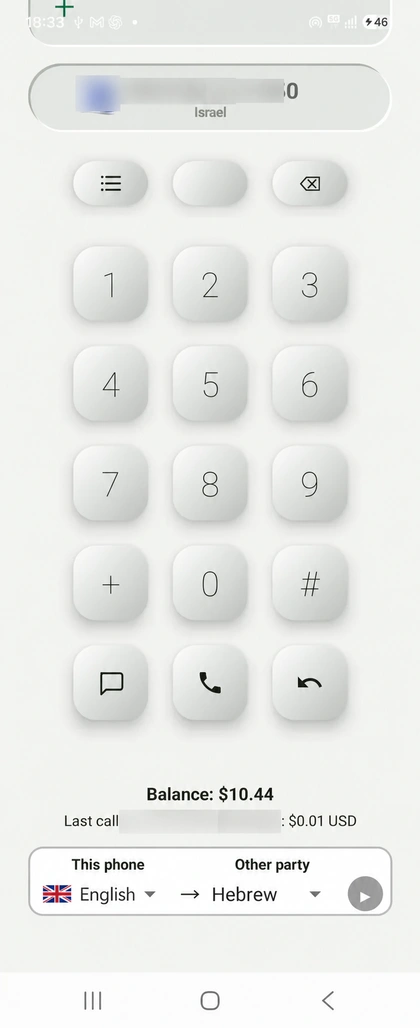
Fig. 2Open the dialler. This is the ordinary telephone network call screen. Enter the other person's number; your selected outgoing number and balance appear below.
Fig. 3. Choose conversation languages
Fig. 3Choose conversation languages. Scroll down. Under This phone on the left, select your language; under Other party on the right, select theirs. For example, English on the left and Hebrew on the right. Two-way translation works in both directions.
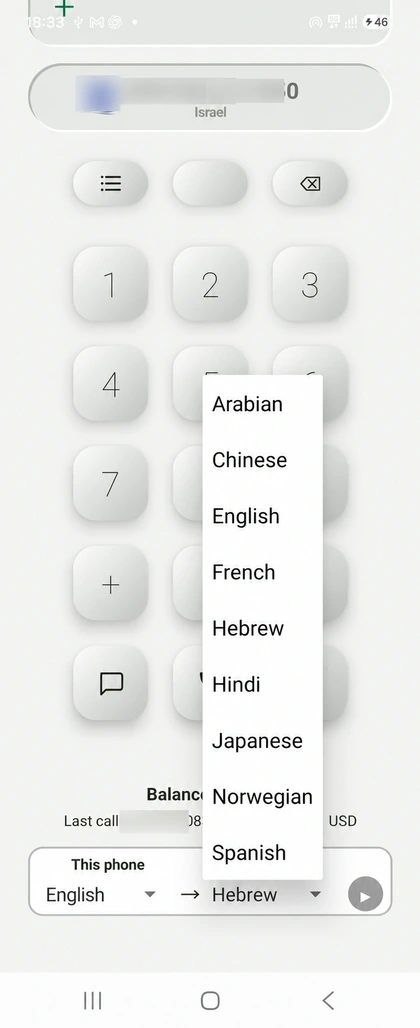
Fig. 4. Select your language from the list
Fig. 4Select your language from the list. Open the left-hand menu and choose a language. Connecter supports more than 70 languages, with 40 continuously available. If you need another language, contact support and we will activate it for you. This is the largest collection of languages on the market.
Fig. 5. Set the other person's language
Fig. 5Set the other person's language. In the right-hand menu, choose the language of the person you are calling. For example, for English and Hebrew, select English on the left and Hebrew on the right.
Fig. 6. Tap the green call button
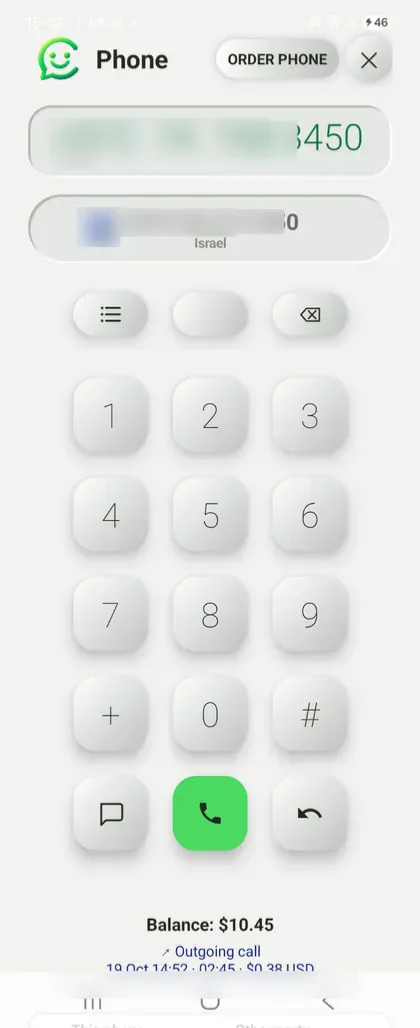
Fig. 6Tap the green call button to start the call. Telephone translation requires a balance of at least $2. With less than $2, translation is unavailable and the call proceeds normally without translation. Ordinary telephone calls are charged at the applicable rate.
Fig. 7. Wait for the connection
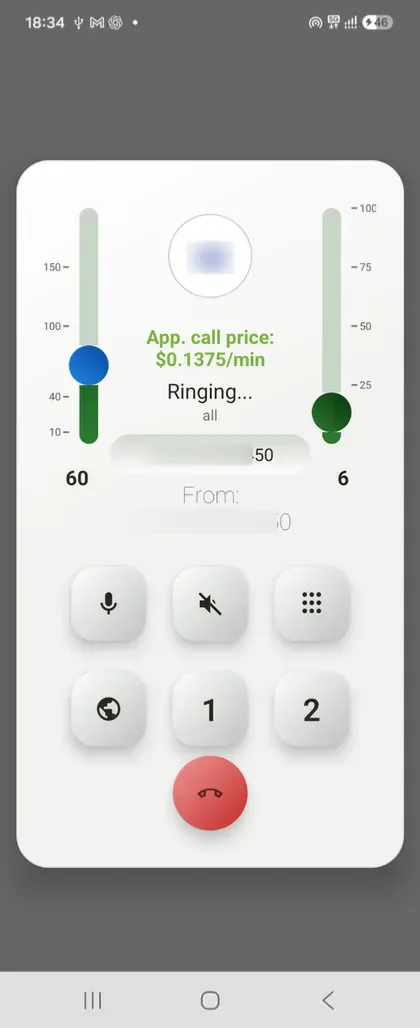
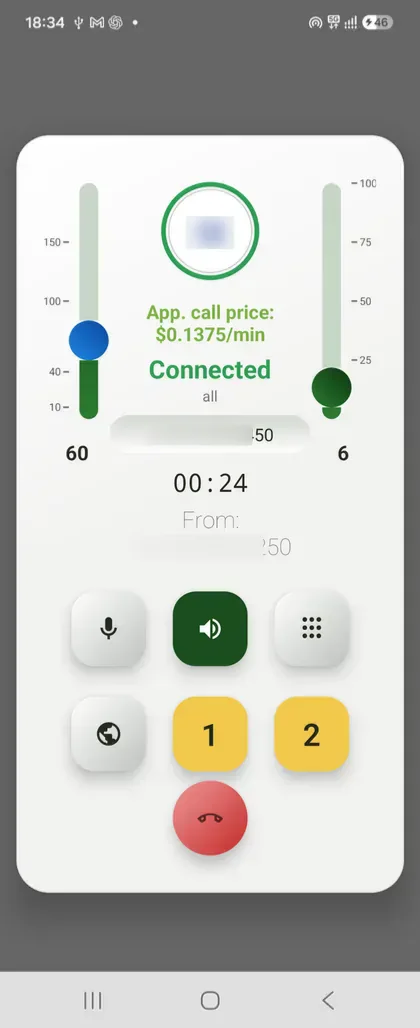
Fig. 7Wait for the connection. The call screen opens. At the top are two sliders: the left controls the other person's original speech volume; the right controls the translation volume. Button 1 enables one-way translation, and button 2 enables two-way translation.
Fig. 8. Wait for translation to be ready
Fig. 8Wait for translation to be ready. Buttons 1 and 2 are yellow while translation starts. This is the preparation stage: translation is not ready yet. Wait for the selected mode to turn green.
Fig. 9. Talk and read the translation
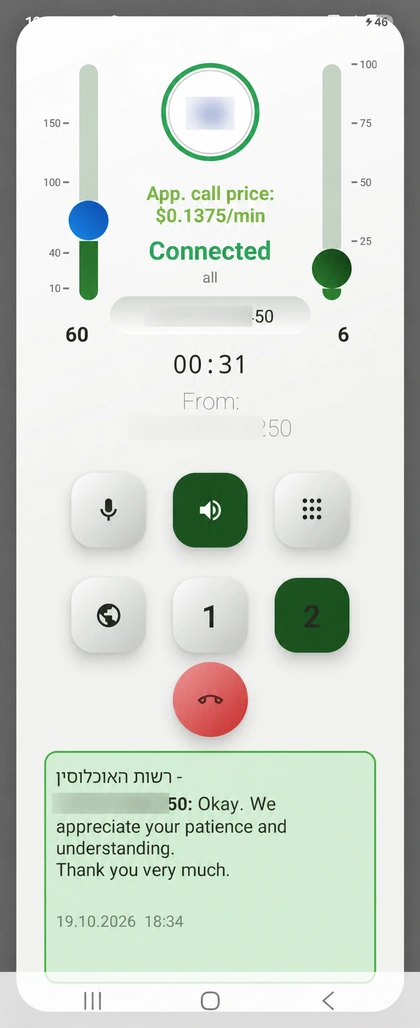
Fig. 9Talk and read the translation. A green button 2 shows that two-way translation is working. The conversation appears in both languages at the bottom. Speak your own language and listen to translated replies.
Fig. 10. Listen only to the translation
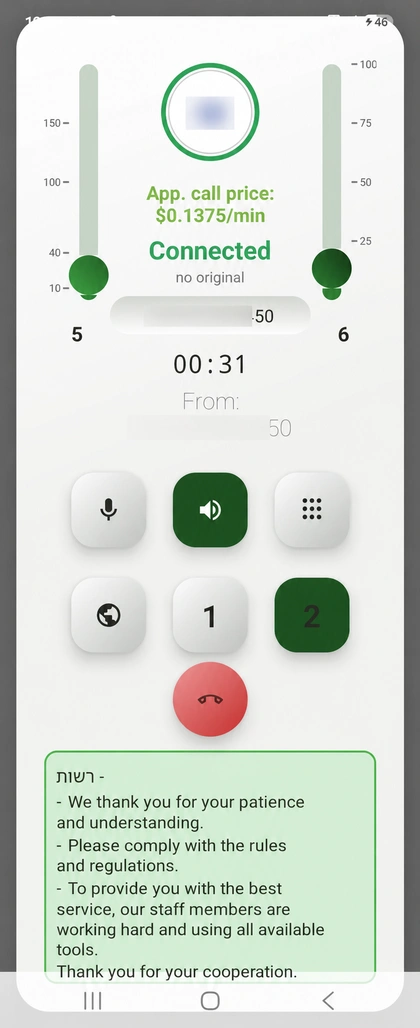
Fig. 10Listen only to the translation. Lower the left slider until its indicator turns green. The other person's original speech is muted, so you hear the translation. The conversation text continues to appear below.
Fig. 11. Listen to the original and translation together
Fig. 11Listen to the original and translation together. A blue indicator on the left slider means original speech and translation play together. Adjust both sliders to find a comfortable volume balance.
Fig. 12. Open the touch-tone keypad
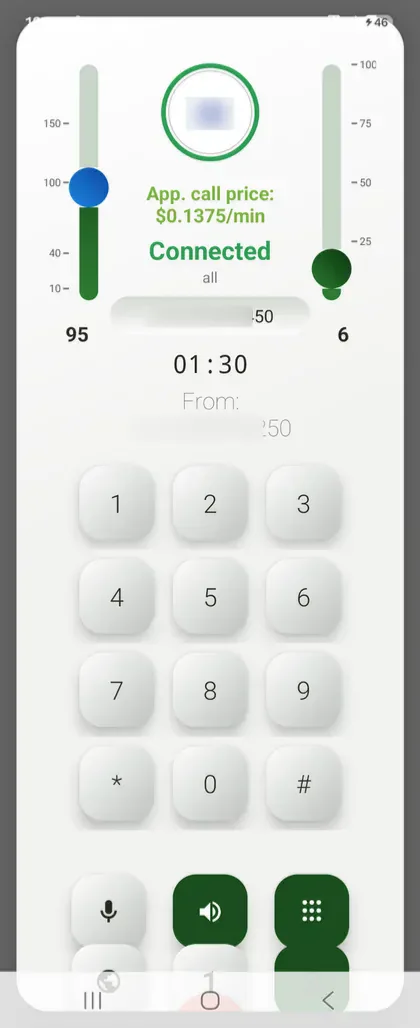
Fig. 12Open the touch-tone keypad. Tap the nine-dot button to open the numeric keypad during a call. Use it to select telephone menu options, such as a service language or department.
Fig. 13. Choose your outgoing number
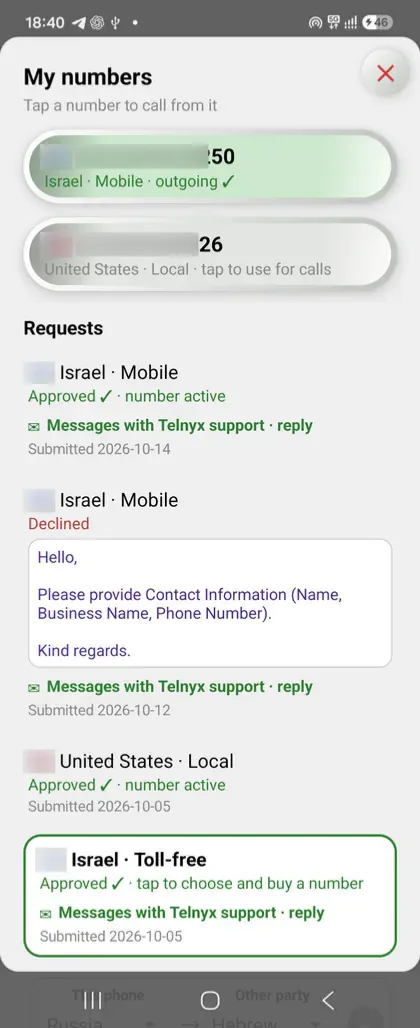
Fig. 13Choose your outgoing number. My numbers displays your phone numbers and application statuses. Tap an active number to use it for outgoing calls.
Fig. 14. Check the number before your next call
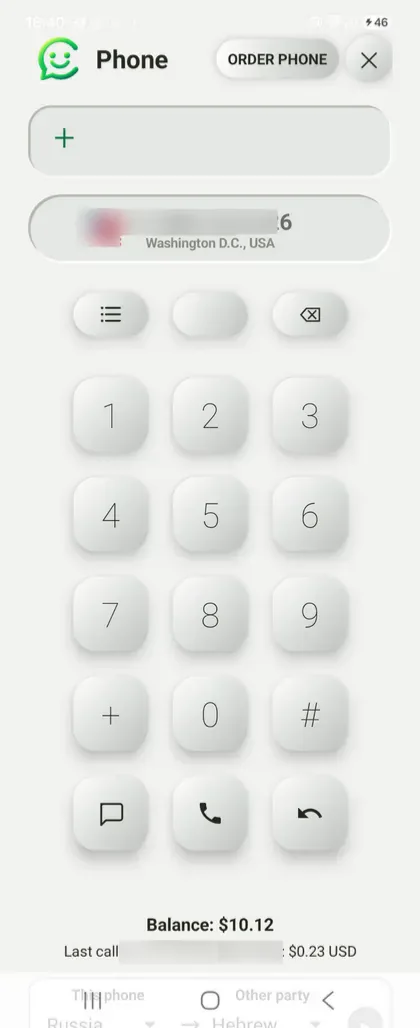
Fig. 14Check the number before your next call. Your selected outgoing number appears above the keypad. Make sure it is correct, then enter the other person's number. Configure languages and translation at the bottom of the window.

Speak your own language.
Connecter helps you understand each other.

Download Connecter

Notes and limits

  • Telephone network translation requires a balance equivalent to at least $2.
  • Calls with translation to short codes and special-service numbers, including ambulance and fire services, are prohibited and unavailable.
  • To get a phone number, you must verify your identity and provide information or documents required by the chosen country. Requirements vary; Connecter offers numbers in around 70 countries.