Connecter · telephone network translation

Your language.
Anyone you call.

Call ordinary phones and understand each other. Speak your own language while Connecter translates during the call — the other person does not need to install the app.

An ordinary translator helps with individual phrases. Connecter integrates translation into a phone conversation: hear replies in your own language and continue talking straight away.

A guest and a hotel receptionist communicating on an ordinary phone with translation

Scenario 1

Make arrangements — and keep the details.

Is your partner abroad and speaking another language? Call through Connecter: discuss things in your own languages and return to the saved text afterwards.

Addresses, phone numbers, meeting arrangements and facts from the call stay close at hand. Check important details in the history rather than relying on memory.

Two people in different countries talking on the phone

Scenario 2

Travel with more confidence.

Confirm your check-in, book a table or arrange a driver — without finding someone to call on your behalf. Dial an ordinary number and explain what you need in your own language.

Less worry about pronunciation and misunderstandings. More independence and enjoyment on your trip. Connecter helps you start conversations with confidence.

A traveller with a smartphone in a new city

Scenario 3

A new country. The same freedom to talk.

Moved abroad and still learning the local language? Speak to your landlord, a shop or a company on an ordinary phone. Connecter translates your words for them and their replies for you.

Handle everyday matters yourself, clarify details and return to the conversation text. Starting a new life is easier when people understand you.

People from different countries communicating with Connecter

How to use translation during a call

After choosing the number and languages, enable translation. Adjust the audio, follow the text and return to the saved conversation.
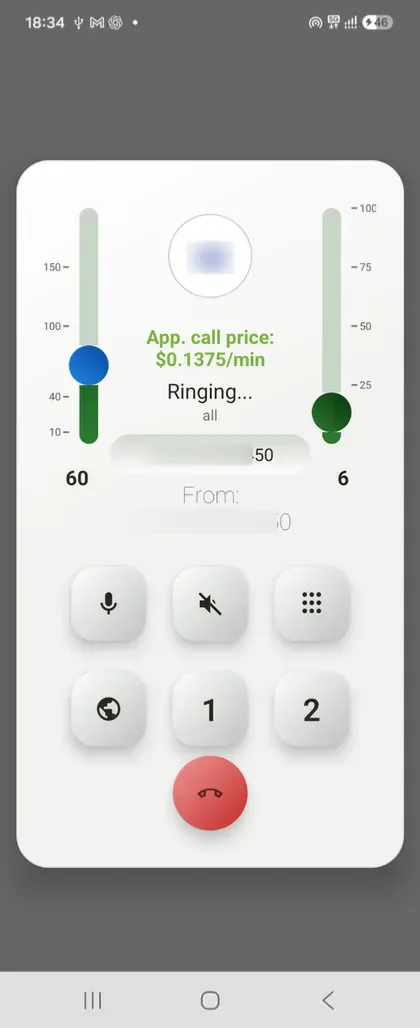
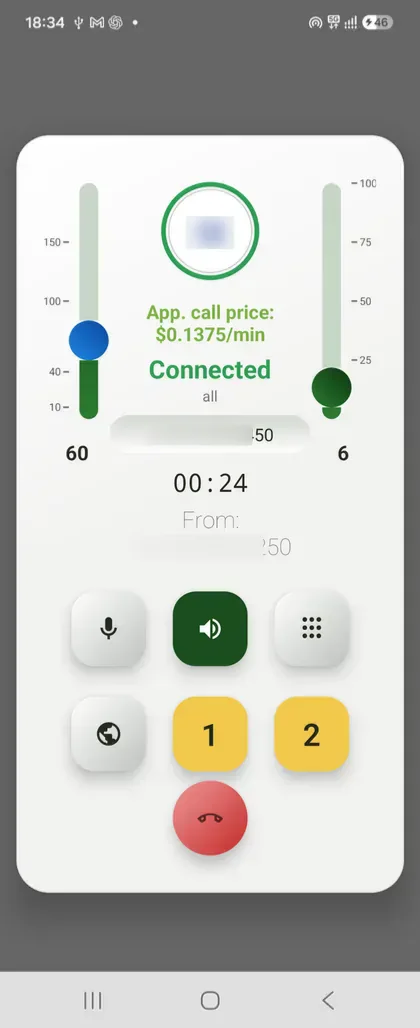
Fig. 1. Wait for the connection
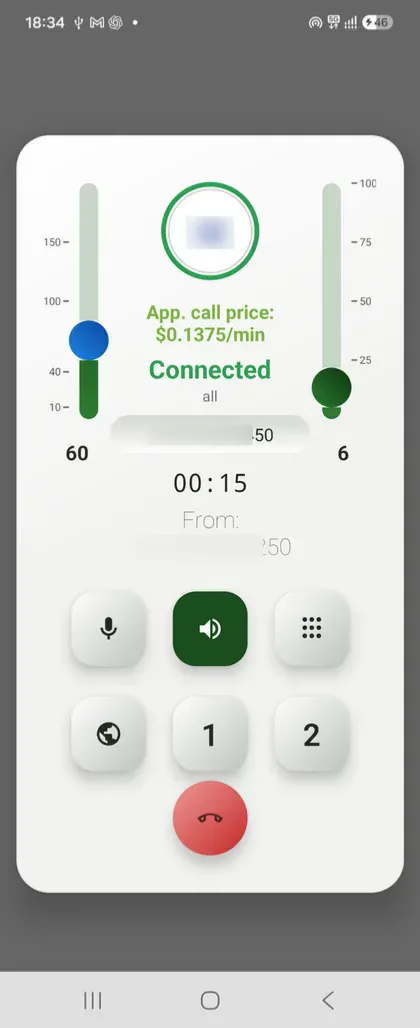
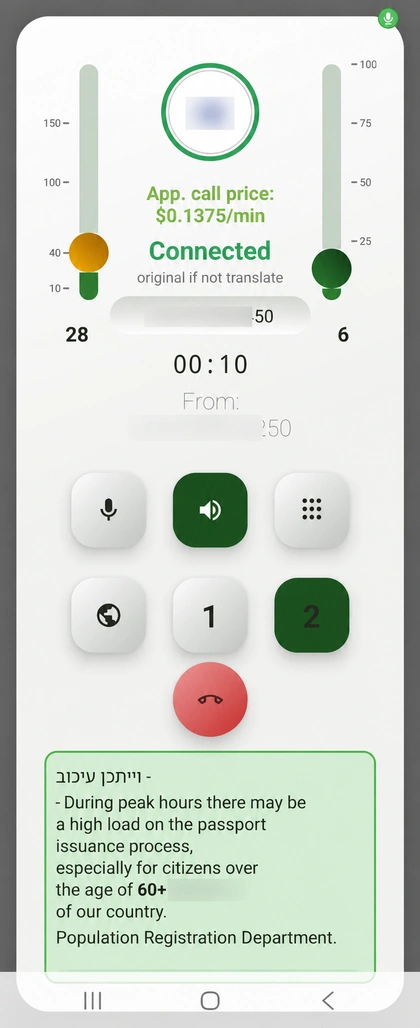
Fig. 1Wait for the connection. The call screen opens. At the top are two sliders: the left controls the other person's original speech volume; the right controls the translation volume. Button 1 enables one-way translation, and button 2 enables two-way translation.
Fig. 2. Wait for translation to be ready
Fig. 2Wait for translation to be ready. Buttons 1 and 2 are yellow while translation starts. This is the preparation stage: translation is not ready yet. Wait for the selected mode to turn green.
Fig. 3. Talk and read the translation
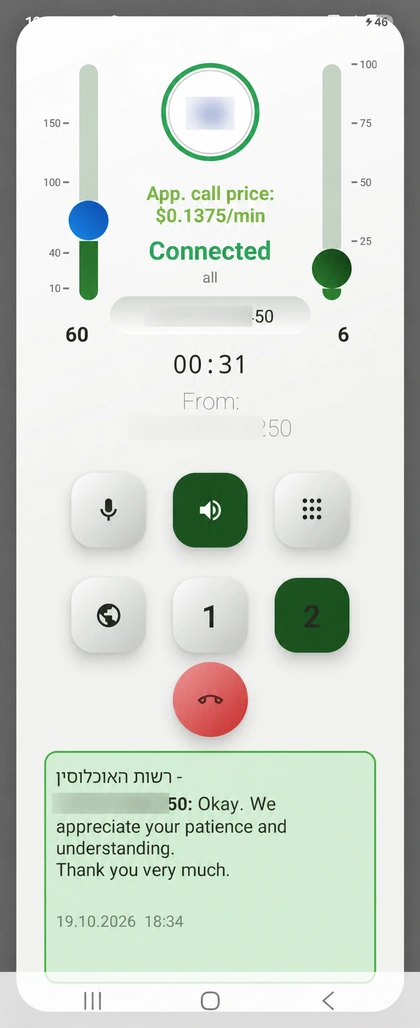
Fig. 3Talk and read the translation. A green button 2 shows that two-way translation is working. The conversation appears in both languages at the bottom. Speak your own language and listen to translated replies.
Fig. 4. Listen only to the translation
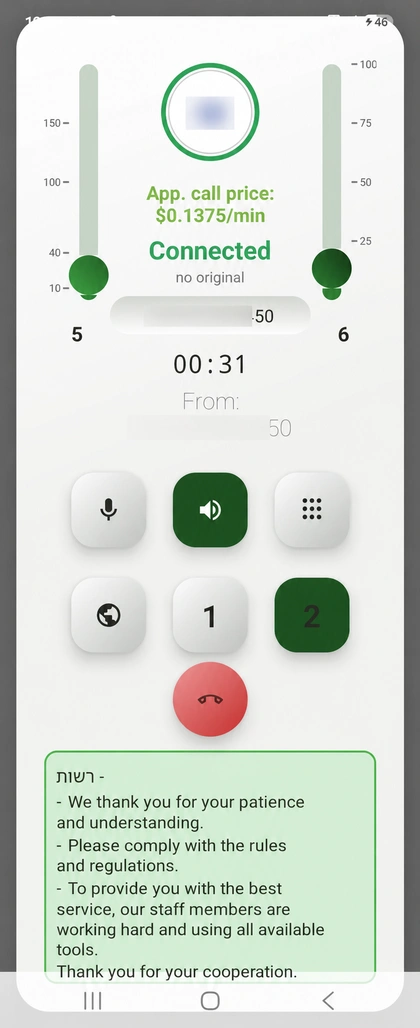
Fig. 4Listen only to the translation. Lower the left slider until its indicator turns green. The other person's original speech is muted, so you hear the translation. The conversation text continues to appear below.
Fig. 5. Listen to the original and translation together
Fig. 5Listen to the original and translation together. A blue indicator on the left slider means original speech and translation play together. Adjust both sliders to find a comfortable volume balance.
Fig. 6. Open the touch-tone keypad
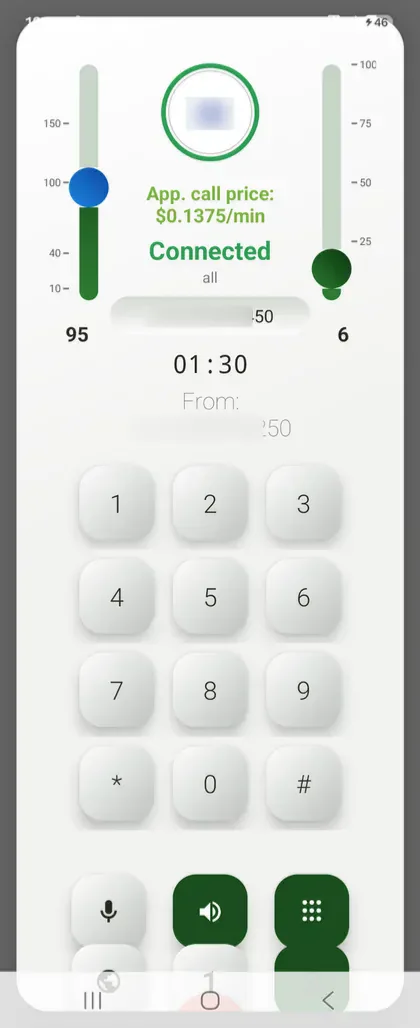
Fig. 6Open the touch-tone keypad. Tap the nine-dot button to open the numeric keypad during a call. Use it to select telephone menu options, such as a service language or department.
Fig. 7. Turn on speakerphone if needed
Fig. 7Turn on speakerphone if needed. Connected means the call is established. Use the speaker button to enable speakerphone. For two-way translation, tap button 2.
Fig. 8. Adjust translation priority
Fig. 8Adjust translation priority. Move the left slider to change the volume of original speech. An orange indicator means translation takes priority: original speech is lowered during translation. Adjust translation volume on the right.
Fig. 9. End the call and open history
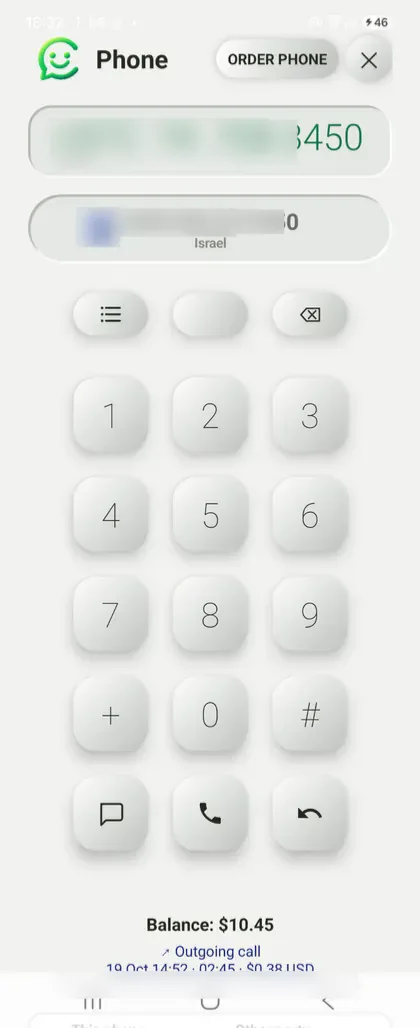
Fig. 9End the call and open history. Tap the red end-call button. Back at the dialler, tap the three horizontal lines at the top left above the keypad to open the call list.
Fig. 10. Find the saved conversation
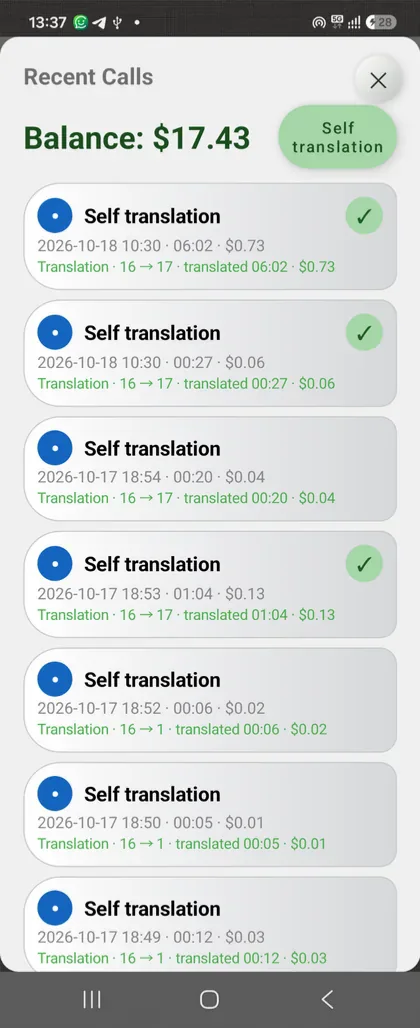
Fig. 10Find the saved conversation. History shows calls and translation sessions. A tick on the right of an entry indicates saved conversation content. Tap it to open the conversation text.
Fig. 11. Read the conversation in both languages
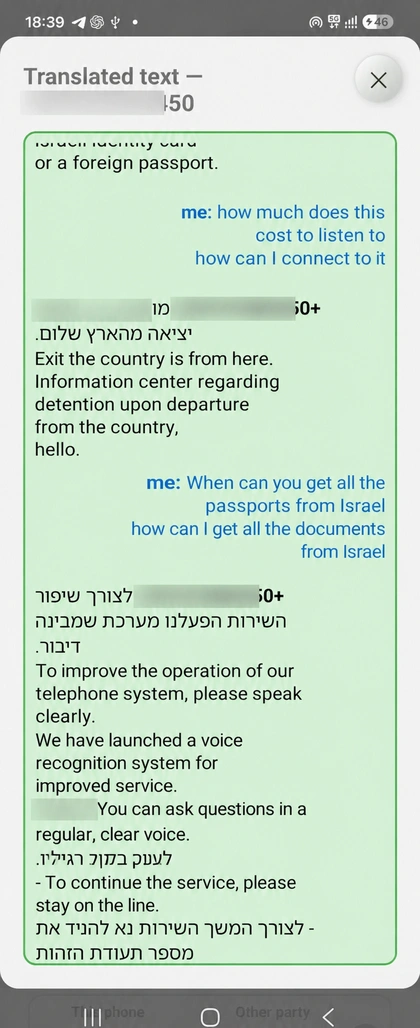
Fig. 11Read the conversation in both languages. Your messages are blue; the telephone participant's replies appear on the left. Originals and translations are saved, so you can return to addresses, phone numbers, instructions and other important information.
Fig. 12. View call details
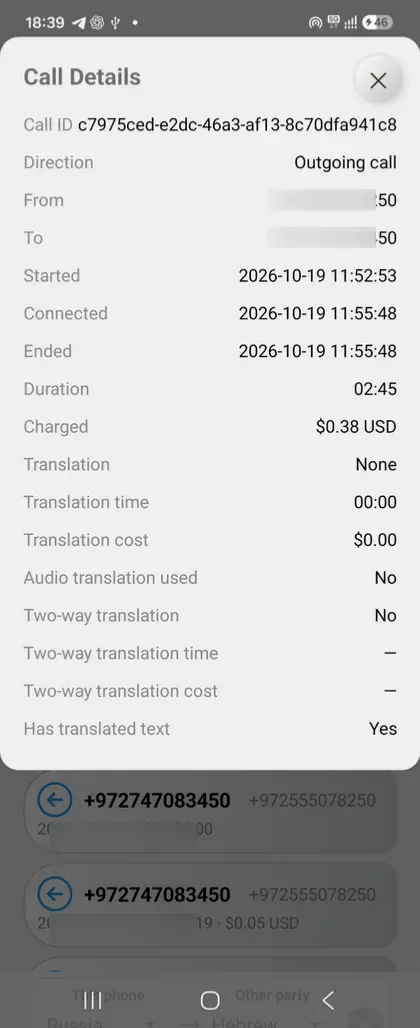
Fig. 12View call details. Tap a call entry in history to open its details: direction, numbers, time, duration and cost. Translation information and the availability of saved text are also shown.

Do not put off the conversation.
You will be understood.

Notes and limits

  • Telephone network translation requires a balance equivalent to at least $2.
  • Calls with translation to short codes and special-service numbers, including ambulance and fire services, are prohibited and unavailable.
  • To get a phone number, you must verify your identity and provide information or documents required by the chosen country. Requirements vary; Connecter offers numbers in around 70 countries.