Every day with Connecter

Everything feels familiar.
With more possibilities.

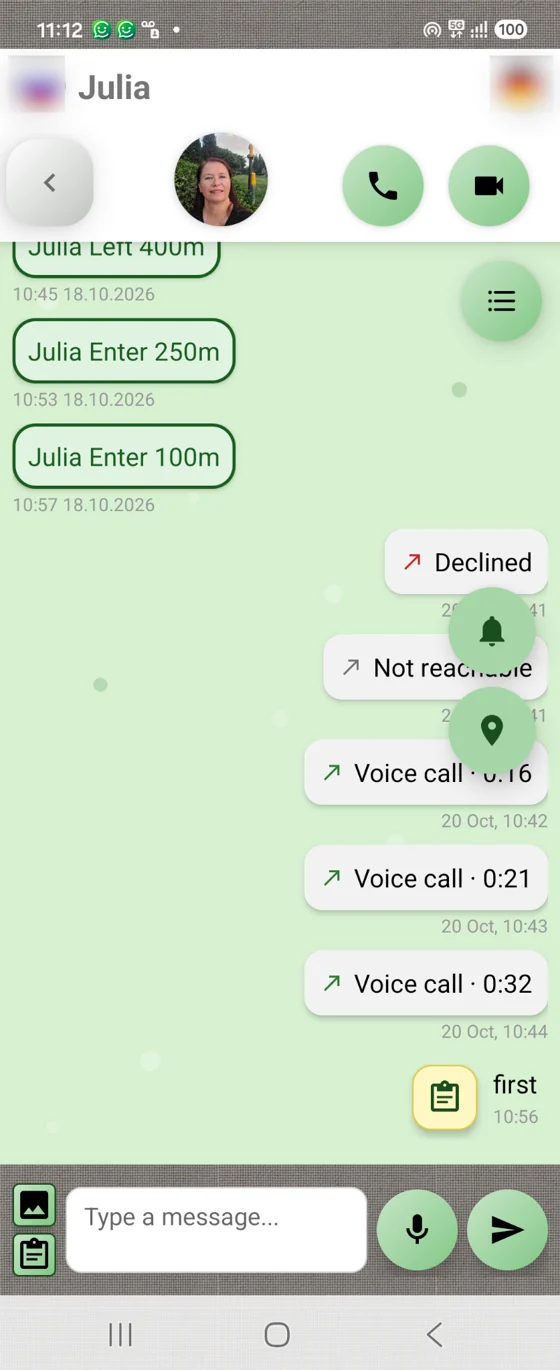
Tap a contact, send a message or make a call. If you have used WhatsApp or another messenger, you already know the basic actions in Connecter.

One chat for messages, photos, materials, shopping lists and geofence alerts. Start voice and video calls using the buttons at the top. Everything you need for everyday communication is close at hand.

Chats, calls and shared lists in Connecter

Scenario 1

Agree by voice. Return to the details.

Discuss something important with a loved one or partner. When a conversation is saved in text history, you can reread what was said: an address, phone number, request or arrangement.

No need to rush to write everything down during a call — return to the saved conversation whenever you need it.

Agree by voice. Return to the details.

Scenario 2

One list.
Build it together.

Someone at home is making a shopping list while someone else is already on the way to the shop. Create a list directly in the chat: every participant can open it, add products, change quantities or update descriptions.

A shared list is especially useful for family shopping: everyone in the chat can add items and clarify details. It is easier than sending individual shopping messages in an ordinary messenger and then searching for who added what. One list in Connecter — for the whole family, friends or team.

Shopping and family tasks — in one chat.

Scenario 3

Easier to call. Easier to see each other.

Tap the handset for a voice call or the camera for a video call. Discuss a question, show what is happening or turn on translation if the other person speaks another language.

Familiar buttons, clear actions. After talking, open the history and detailed call information.

Easier to call. Easier to see each other.

Chat and calls: you already know how

Contact → chat → message or call. Below are familiar actions and Connecter's extra features.
The main private chat screen
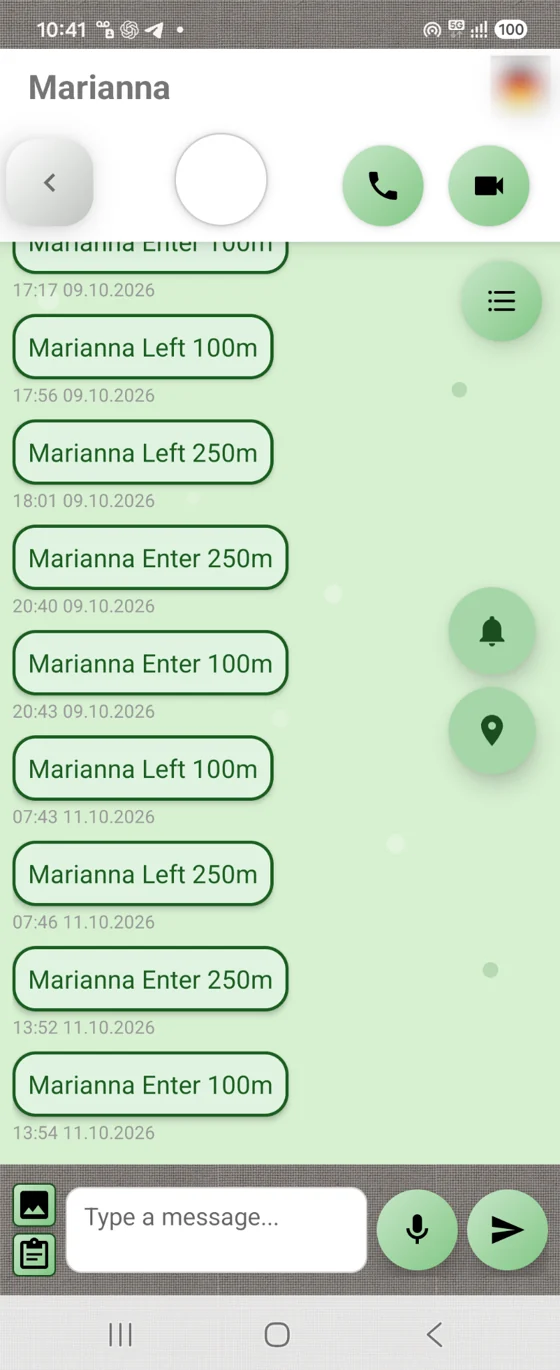
Fig. 1Open a chat. Tap the contact you need to open your conversation. Their name appears at the top left, alongside voice and video call buttons and other controls. Send messages and materials, share shopping lists and see notifications when geofence boundaries are crossed.
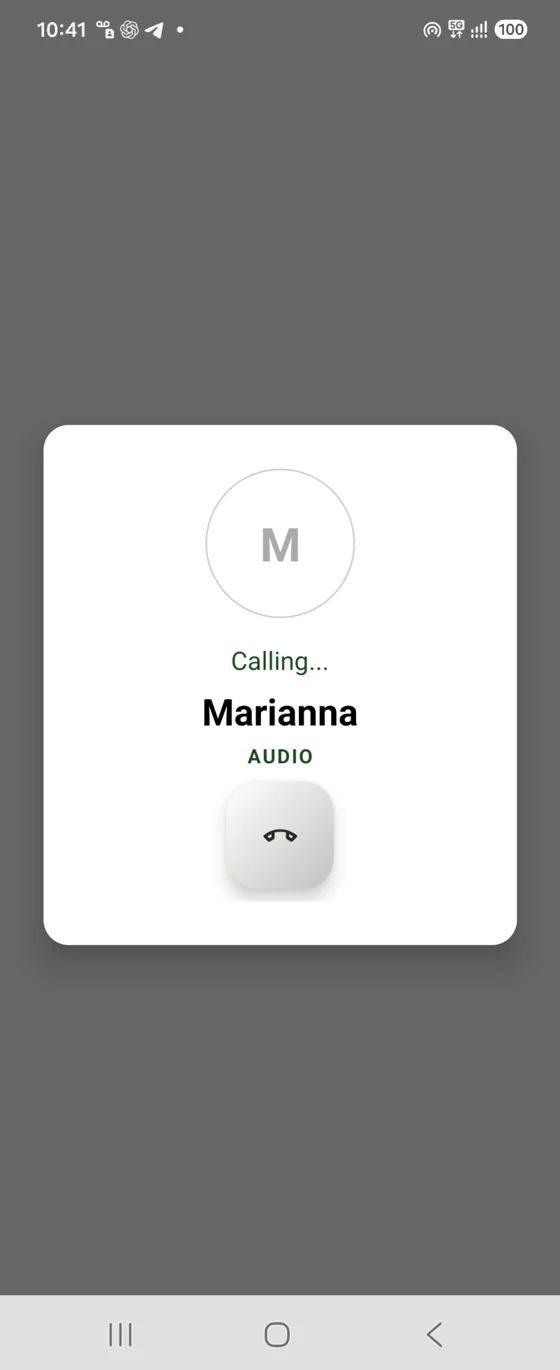
Waiting for a voice call to be answered
Fig. 2Start a voice call. Tap the handset at the top of the chat. The outgoing call screen opens. Audio tones indicate whether the person is busy, not answering or unavailable.
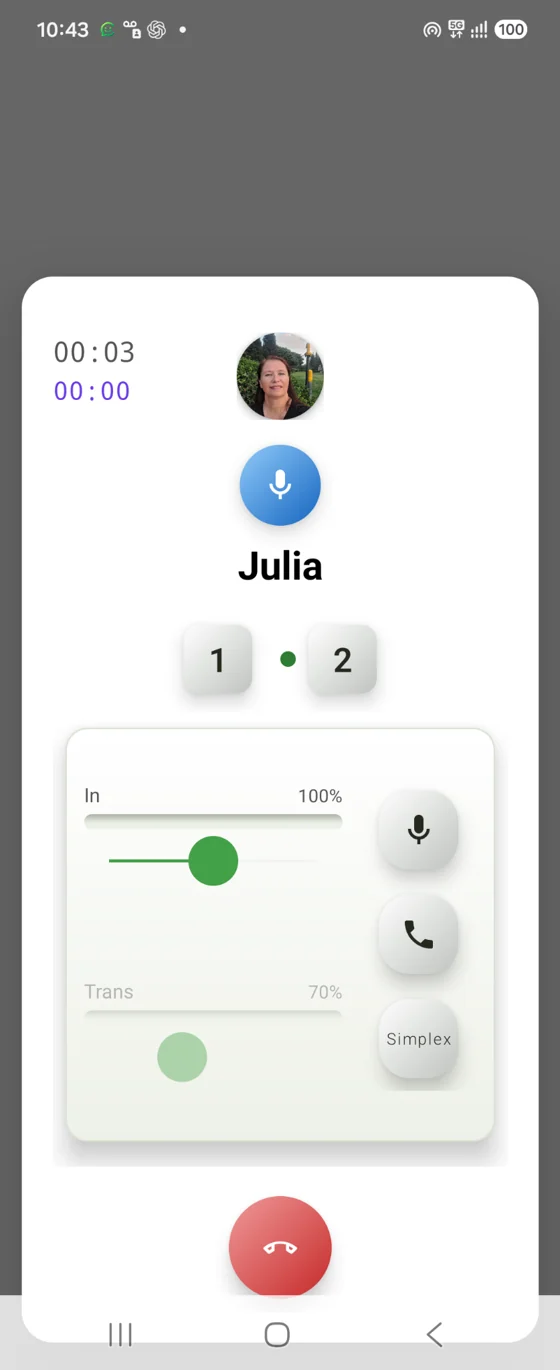
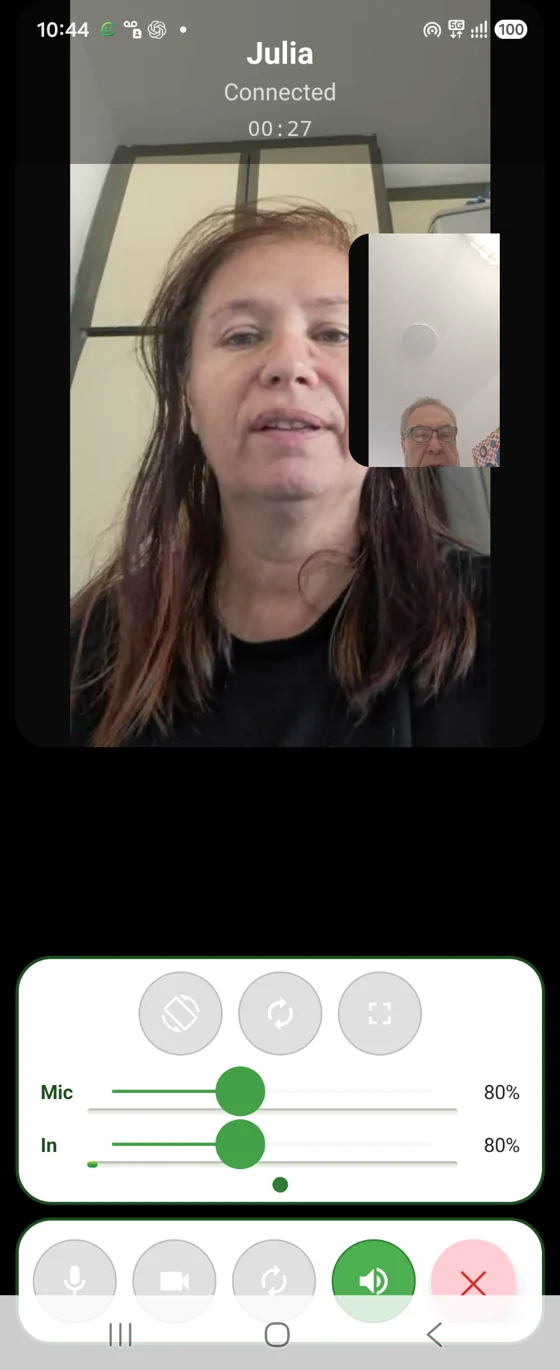
An established voice connection screen
Fig. 3Wait for an answer. When the other person answers, the call switches to conversation mode. You will see the connected call screen.
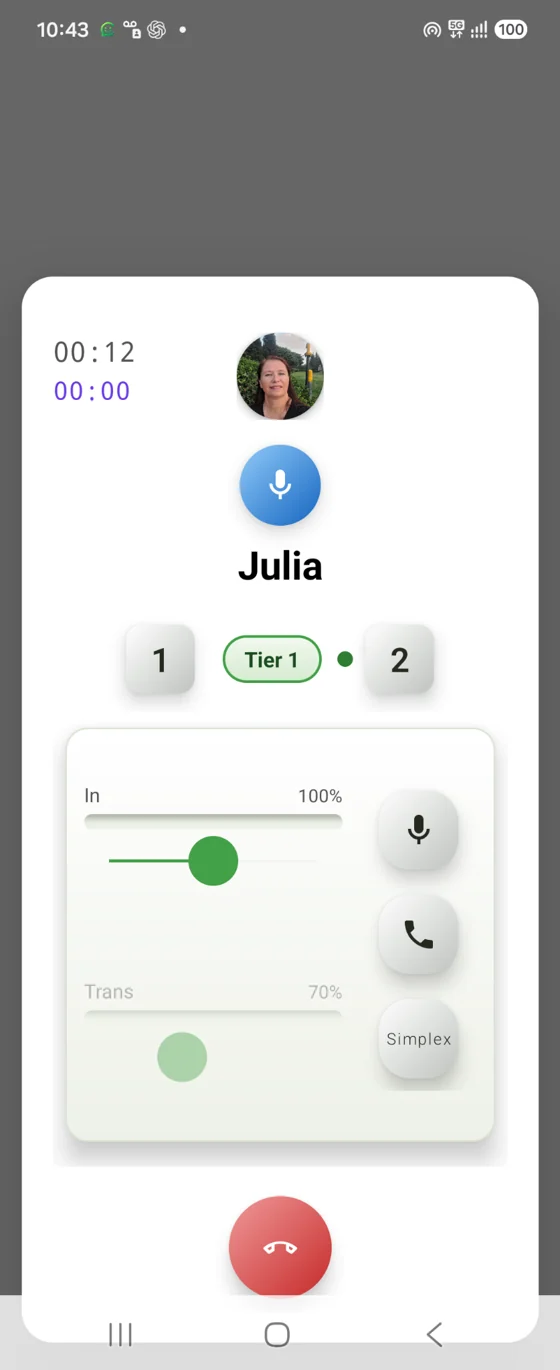
Volume and translation controls
Fig. 4Adjust your conversation. Talk to the other person and adjust the volume. If you speak different languages, enable translation. The red button ends the voice call.
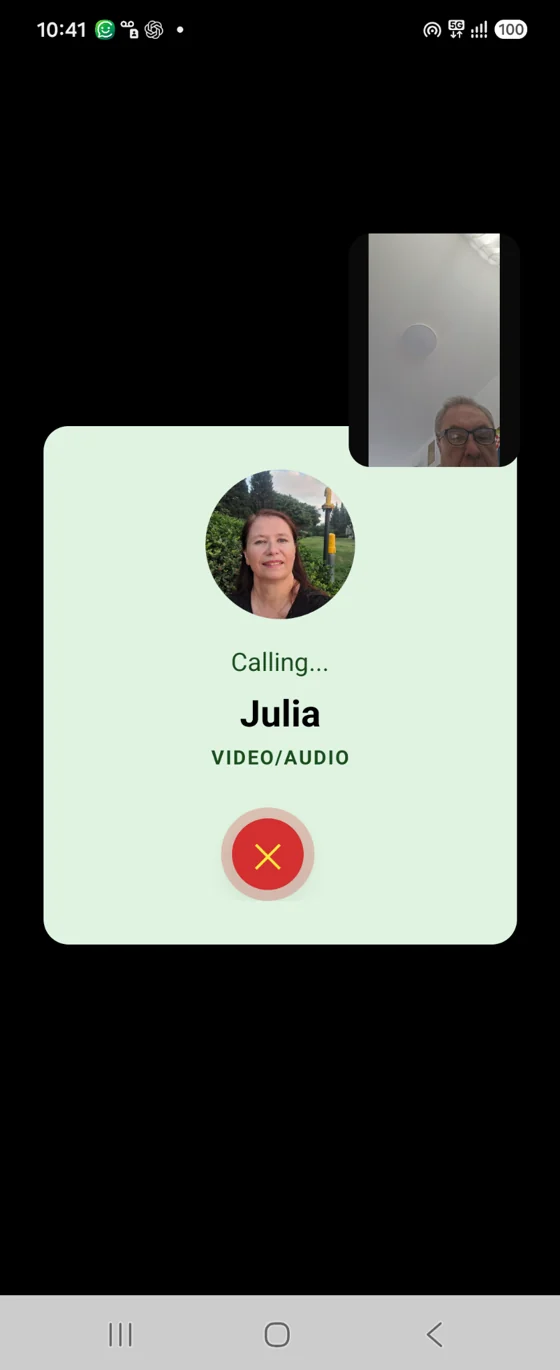
Outgoing video call
Fig. 5Make a video call. Tap the video camera to start a video call. The waiting screen appears while the call rings.
Video connection with the other person
Fig. 6Talk by video. When the other person answers, the video connection opens. Tap the red button to end the video call.
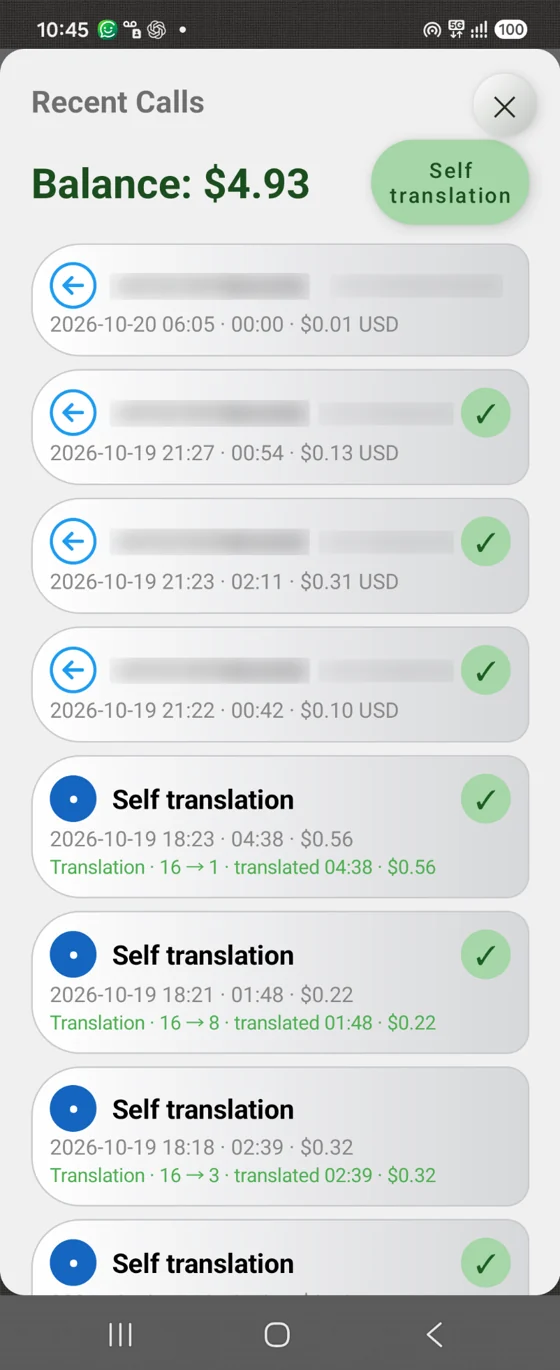
Call history
Fig. 7View call history. Open the call list. It contains information about your conversations, including calls through the ordinary telephone network.
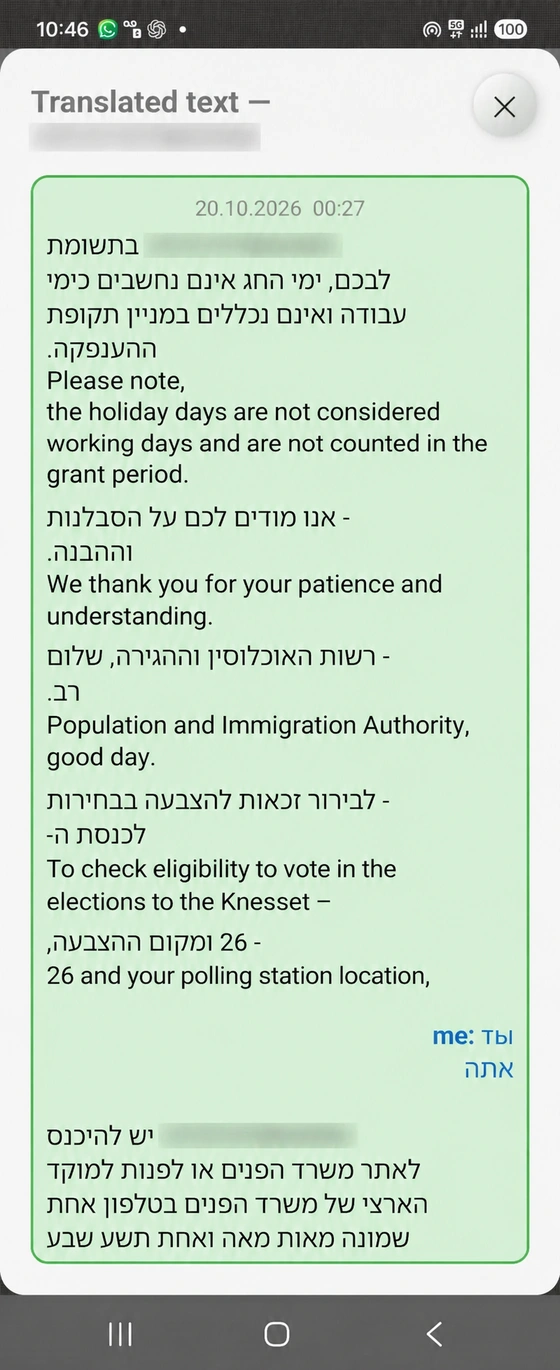
Saved conversation text
Fig. 8Return to the conversation. Open the relevant entry to view the saved conversation text. Check what you discussed and find important information.
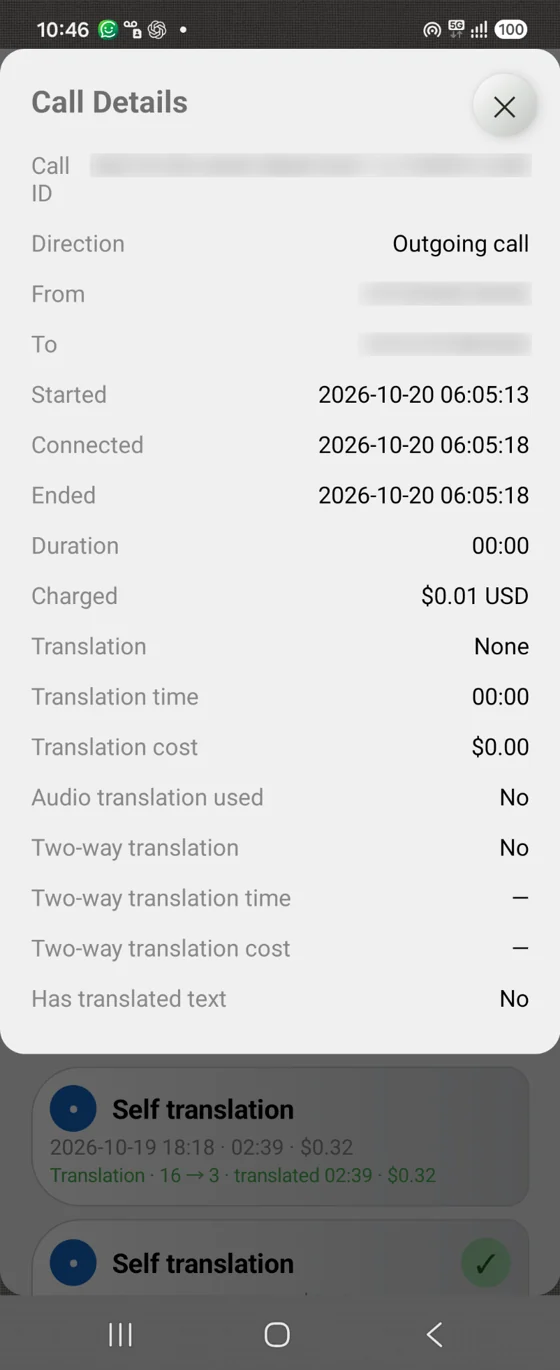
Detailed call statistics
Fig. 9Explore call details. Open detailed statistics for a selected call to see available connection information.

Messages and shared lists

Dictate a message.
Build a list together.

Discuss shopping, tasks and plans where you already chat. Enter text by voice and edit a shared list with chat participants.
Speak instead of typing
Fig. 10Speak instead of typing. Tap the microphone at the bottom of the chat and dictate a message in your language. Connecter recognises speech in the language selected in Account Settings and turns it into text.
Add images and shared materials
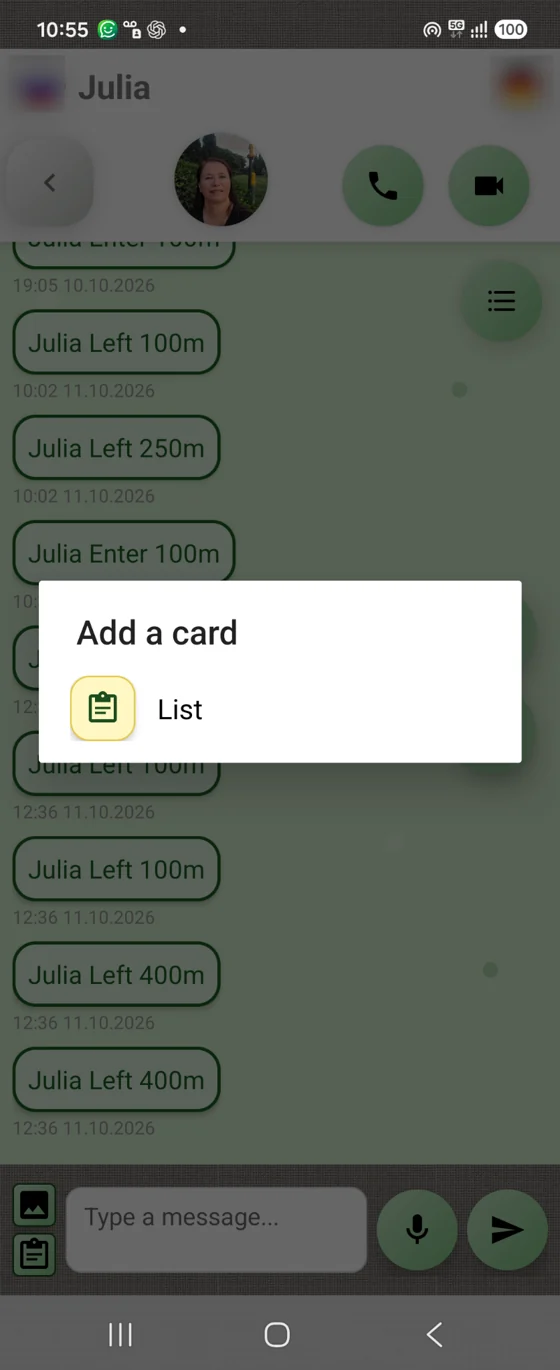
Fig. 11Add images and shared materials. There are two buttons to the left of the message field. The upper button adds an image; the lower one opens lists, polls and other available collaboration options.
Create a list for the whole chat
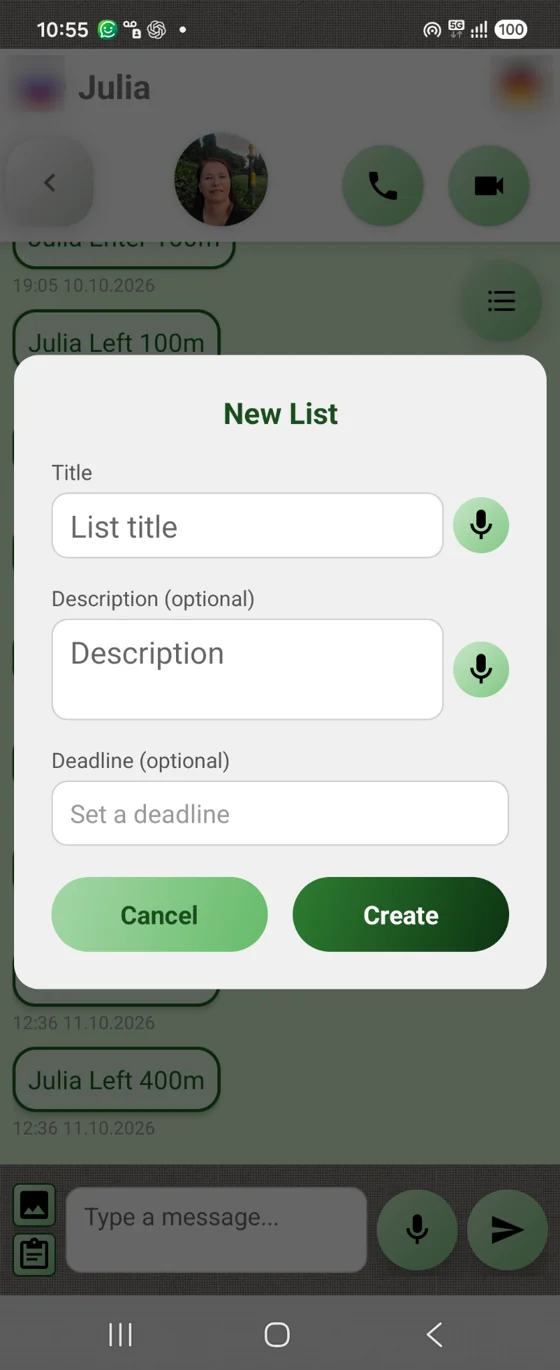
Fig. 12Create a list for the whole chat. Tap the lower button to the left of the message field and choose List. People in a private or group chat can open the list, add items and change its content. Useful for shopping, tasks and shared plans.
Name your list
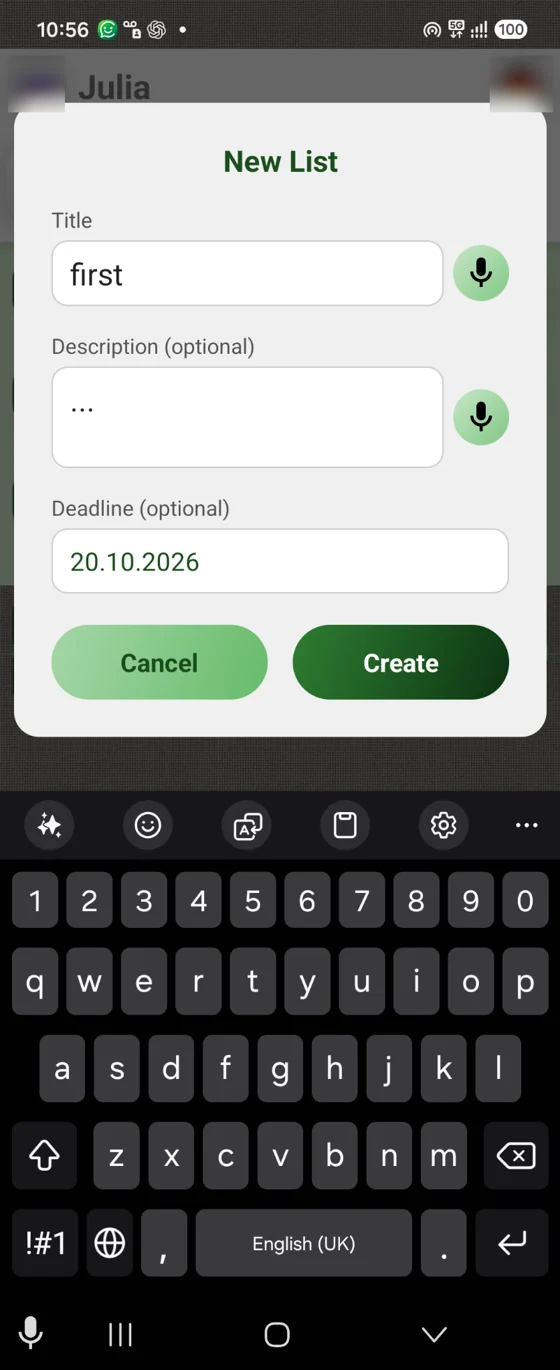
Fig. 13Name your list. Enter a clear name, such as “Weekly shopping”. You can tap the microphone and simply dictate the name in your language.
Use your familiar keyboard
Fig. 14Use your familiar keyboard. Enter any text with the on-screen keyboard. Choose whichever is more convenient: typing or dictating.
Save the name and add an item
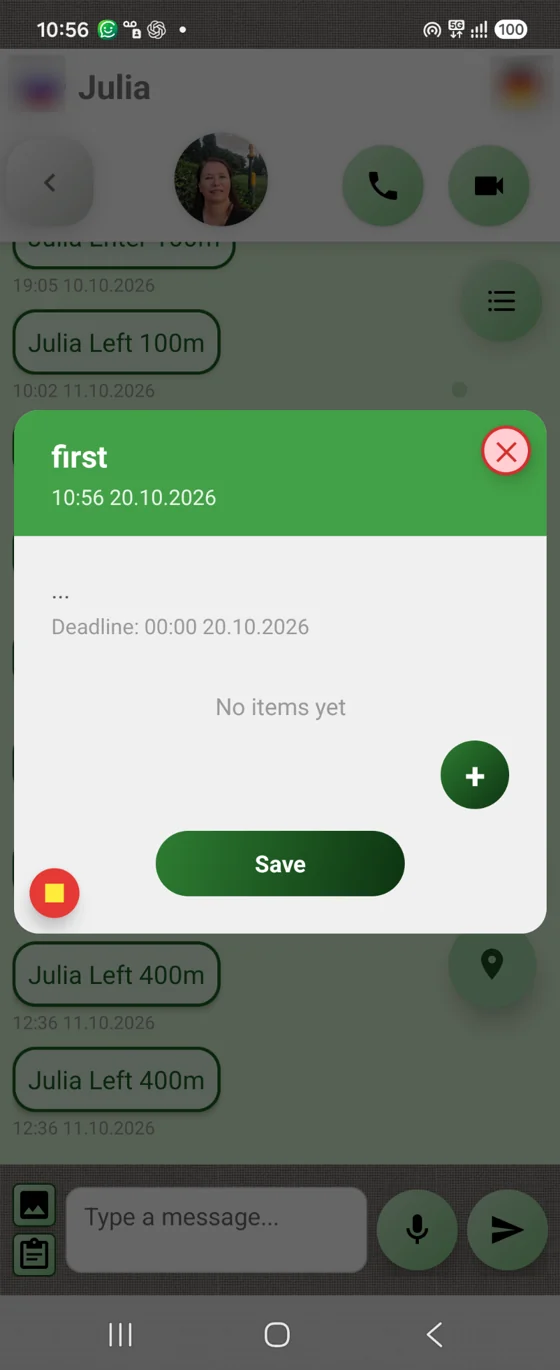
Fig. 15Save the name and add an item. Tap Create to create the list. In the card that opens, tap the green “+” button on the right to add a new item, such as a product to buy.
Specify exactly what is needed
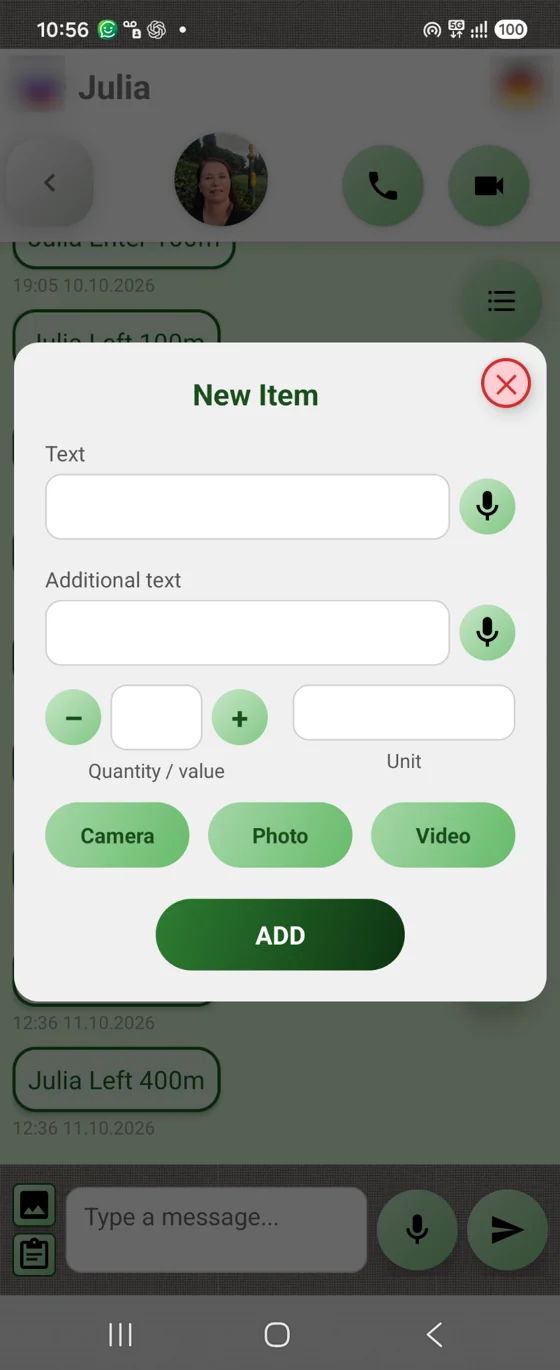
Fig. 16Specify exactly what is needed. Enter the item name and, if needed, a description, quantity and unit. Then tap ADD to add it to the list.
Save the completed list
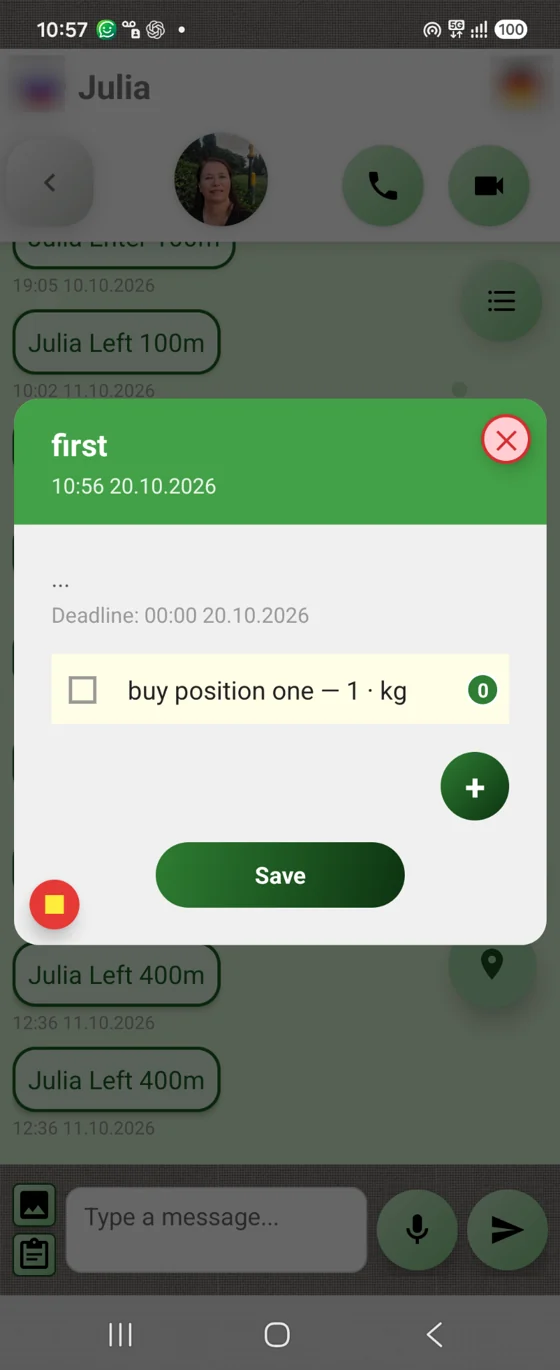
Fig. 17Save the completed list. Add the remaining items and tap Save. The list is saved for posting in the chat.
Edit the list together
Fig. 18Edit the list together. A list card appears in the chat. Any participant can open it and edit its content. For example, one person creates a shopping list while another updates it on the way to the shop — everything stays in one place.

Start simply.
Send a message or make a call.

Download Connecter